
Does Final Fantasy Resonance Run on Linux? Proton Status
Steam lists Windows 11 and Steam Deck Verified. See what those fields establish, how Proton fits, and how to check a Linux freeze.
FAQ
Is Final Fantasy Resonance officially supported on desktop Linux?
Does Steam Deck Verified mean the game works on CachyOS?
Does a reported CachyOS freeze prove the retail game will not run on Linux?
How should I test Proton without guessing a version?
Can I use the Windows requirements as a Linux performance target?
Does Final Fantasy Resonance work on Linux?
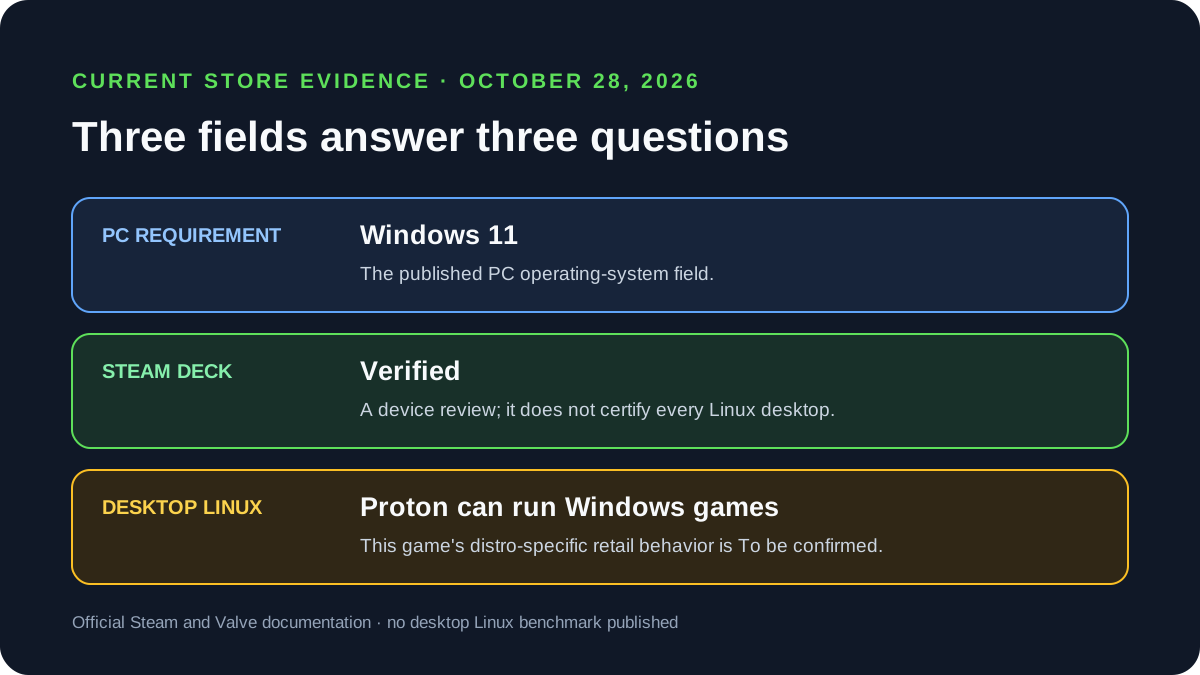
Steam lists Windows 11 in the game’s PC system requirements and separately displays Steam Deck Verified. That badge is a device compatibility result, not a promise for every desktop Linux distribution. Valve’s Proton is a compatibility layer for running Windows games on Linux, but the game’s current desktop-Linux behavior is To be confirmed.
What Steam’s current fields confirm
| Evidence on the current Steam page | What it confirms | What it does not confirm |
|---|---|---|
| PC minimum and recommended requirements list Windows 11 | The published PC requirement is for Windows 11. | A native Linux build, supported distro list, or Linux performance target. |
| Steam Deck Compatibility is Verified | The game passed the Steam Deck compatibility review shown by Steam. | A test result for every desktop Linux distribution, graphics driver, or Proton version. |
| Valve documents Proton as a Windows-game compatibility layer for Linux | Proton is the general route for trying Windows games on Linux. | A title-specific guarantee that every game runs or has no freezes. |
The safest answer is therefore platform-specific: Steam Deck is listed as Verified; desktop Linux is not separately certified on the store page. The Windows requirement alone does not prove that Proton will fail, and the Deck badge alone does not promise desktop-distro support.
Why Steam Deck Verified is not a Linux desktop guarantee
Valve describes its Deck and Steam Machine compatibility review as a device-specific process. Steamworks documentation describes separate ratings for those devices and for compatible SteamOS devices; it does not claim to certify every desktop Linux setup. A desktop may use a different distribution, kernel, driver stack, display server, or controller configuration.
For context, the game’s Steam page lists Windows 11 and the Steam Deck Verified badge as different fields. Neither field publishes a named Ubuntu, Fedora, CachyOS, or other desktop test. See the Steam Deck guide for the badge criteria and the PC system requirements guide for the Windows targets.
How to try the Steam version through Proton
Ubuntu’s Steam documentation describes the general Steam Play controls. The labels can vary by client version, but the route is:
- Install the Steam version using the regular Linux Steam client.
- In Steam settings, enable Steam Play for other titles if the Windows-only game is not offered to launch.
- In the game’s Library entry, open Properties → Compatibility and select a Proton compatibility tool.
- Launch once and record whether the game reaches its title screen, freezes, or exits. Do not change Proton, graphics options, and controller setup all at once.
- If you test another Proton tool, change only that setting and compare the same save, scene, and controller connection.
This is a controlled way to test the current build; it is not an official Square Enix Linux support procedure. No Proton version is confirmed here as a universal fix.
What to record if the game freezes
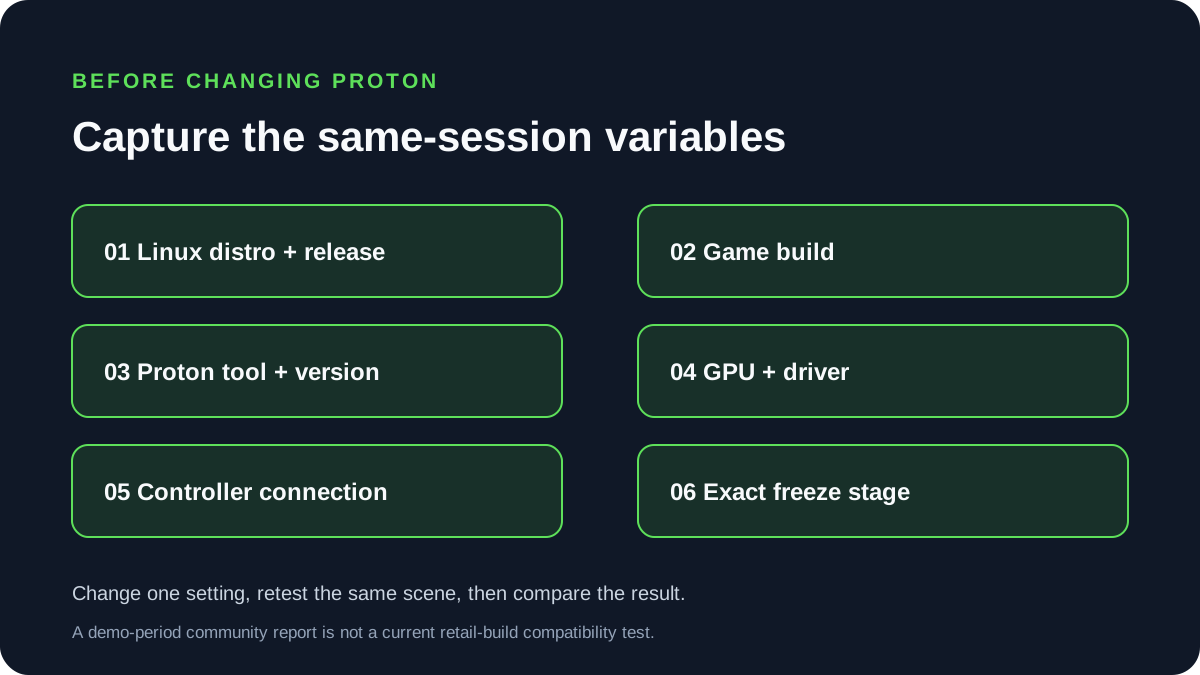
A useful report needs more than “Linux does not work.” Save these details before trying another compatibility tool:
| Record | Why it matters |
|---|---|
| Distribution and release, such as CachyOS or Ubuntu | Desktop Linux is not one fixed environment. |
| Game build and Proton tool/version | A demo or older build does not establish current retail behavior. |
| GPU model and driver version | Rendering failures can depend on the graphics stack. |
| Whether a controller was connected, and whether it disconnected or slept | This helps distinguish a game launch problem from an input/session event. |
| The exact stage and error text | “Launch freeze,” a warning window, and a crash after input are different symptoms. |
The CachyOS freeze question surfaced in a public Steam discussion on September 3, during the demo period. Replies described different outcomes, including one report that the problem followed a wireless-controller disconnect. Those are individual demo-era observations, not a current-build test or an official fix. Treat the retail version’s desktop-Linux status as To be confirmed until it is tested on the same distribution and build.
If your goal is a handheld PC, use the separate Steam Deck compatibility guide. For remote streaming from a Windows PC to another device, see the Steam Link guide; streaming compatibility is a different question from running the game on desktop Linux.
Official sources
- Steam: FINAL FANTASY RESONANCE — current Windows 11 system requirements and Steam Deck compatibility field; checked October 28, 2026.
- Valve Steamworks: Steam Hardware and Proton — Proton’s role as a Windows-game compatibility layer for Linux; checked October 28, 2026.
- Valve Steamworks: Steam Deck and Steam Machine Compatibility Review — device-specific compatibility review and ratings; checked October 28, 2026.
- Ubuntu: Configure Proton/Steam Play — general Steam Play and per-game compatibility settings; checked October 28, 2026.
Gallery
Related Articles
guides
How to Change Battle Speed in Final Fantasy Resonance
Find the battle-speed control on PC and distinguish combat speed from text and movement settings.
guides
Final Fantasy Resonance Steam Save File Location on Windows
Find the Windows Steam demo and full-game save folders and understand what a local backup does.
guides
Final Fantasy Resonance Controller Not Working on Steam: What to Check
Compare controller detection, input and in-game response in Final Fantasy Resonance without assuming a universal fix.
Was this helpful?
Thanks for the feedback!