
Final Fantasy Resonance Controller Not Working on Steam: What to Check
Compare controller detection, input and in-game response in Final Fantasy Resonance without assuming a universal fix.
FAQ
Why can Steam see my controller while the game does not respond?
Does the Steam listing confirm wireless DualSense support?
Does controller support mean vibration is confirmed?
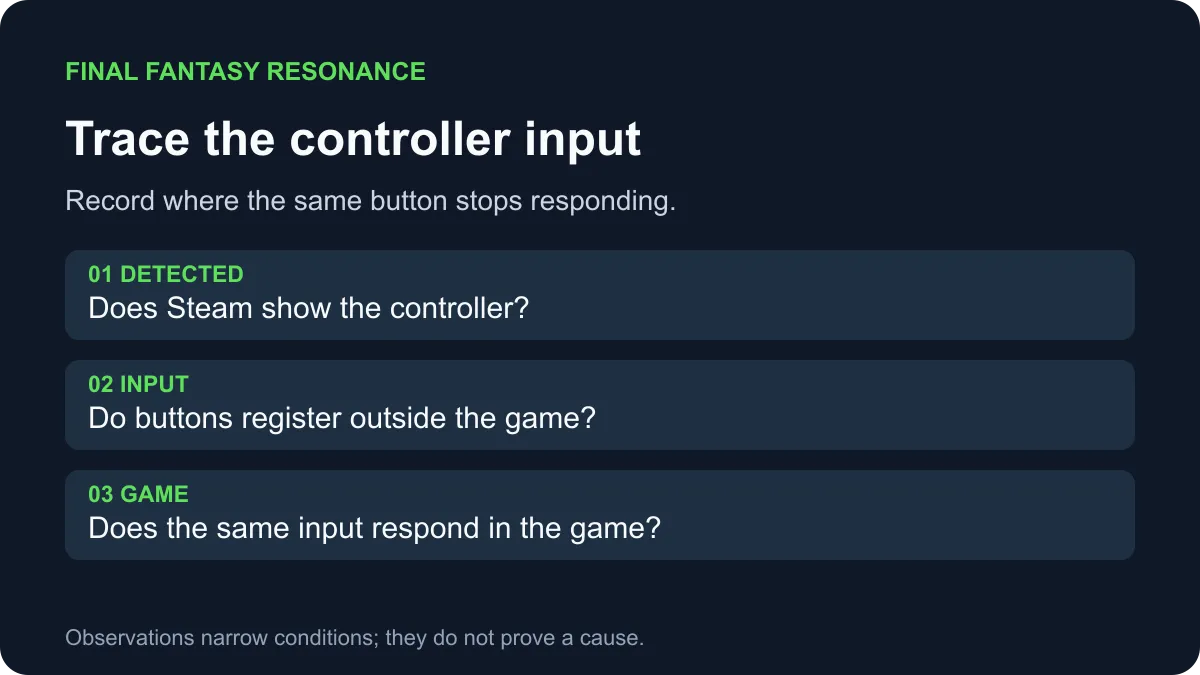
What should you check when the controller is detected but does not work?
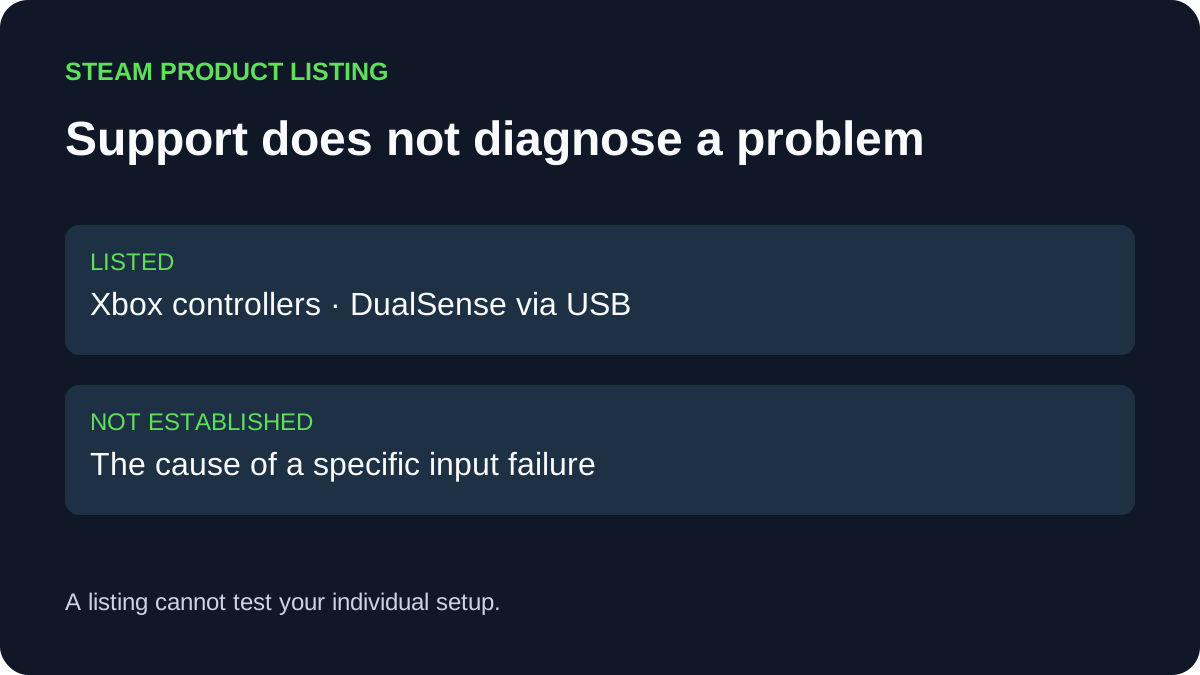
Compare whether the controller is detected, whether its buttons register outside the game, and whether the same inputs reach Final Fantasy Resonance. Steam lists Xbox controllers and DualSense controllers over USB, but a cause or universal fix for this game’s input problems is To be confirmed.
These comparisons help describe the problem; they are not a tested repair. The controller vibration guide covers a separate output feature.
Separate detection from input
Keep the controller model, cable or wireless connection, and game build unchanged for the first comparison. Try the same buttons at each stage and note precisely where the response stops.
| Observation | What it tells you | What it does not prove |
|---|---|---|
| The controller is listed in Steam | Steam can see a device. | That its buttons register or reach the game. |
| Buttons register in another application | The tested inputs reached that application under those conditions. | That every button works or the game receives the same input. |
| Buttons register outside but not inside the game | The symptom is associated with the game session under the tested conditions. | Whether the game, configuration, or another component caused it. |
| Inputs work in one session and fail in another | The conditions may differ between sessions. | That a particular setting caused the difference. |
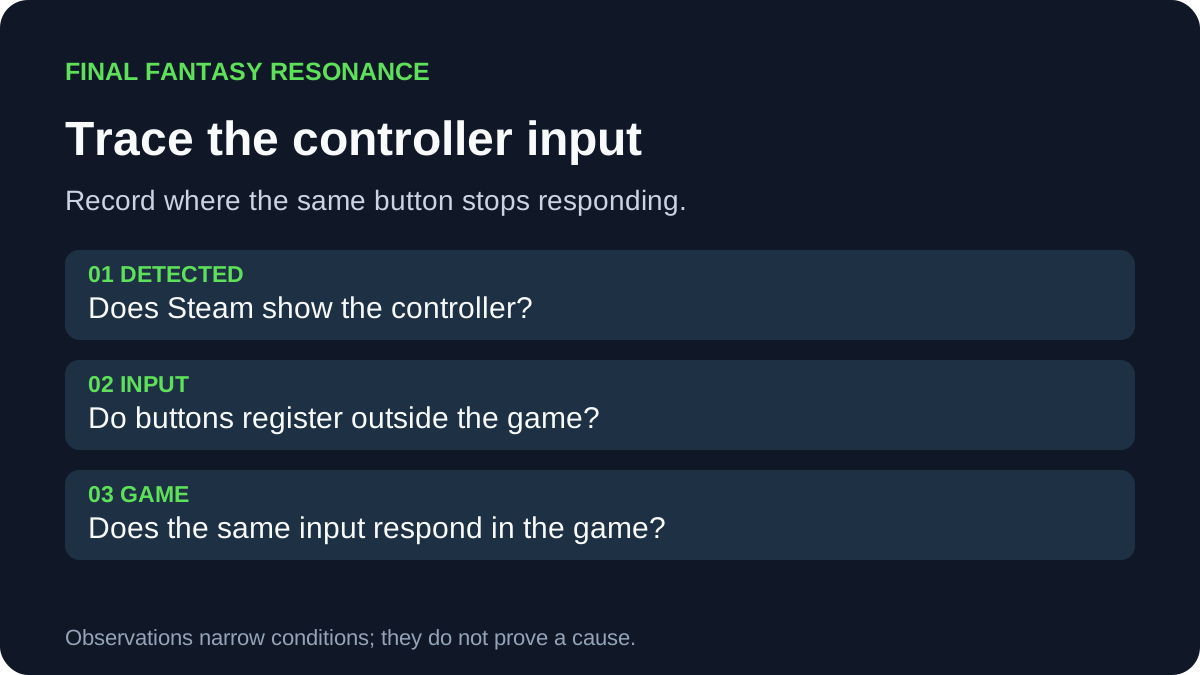
For a 2015 Steam Controller, Valve documents a button test in Big Picture mode: open Settings → Controller → Controller settings, select the controller, choose Support, and follow the diagnostic instructions. This is a device-specific test outside the game, not a proven repair. Other controllers may offer different tests.
Check the connection and supported device
Steam’s product listing names Xbox controllers and DualSense controllers over USB, alongside full controller support and the Steam Input API. The listing is a compatibility statement; it does not guarantee that a particular setup is working. If using DualSense, use a USB connection for the comparison because the listing specifies USB only. Record the connection type and whether changing it alters the result; do not assume a wireless failure or a defective controller from the listing alone.
If you use the 2015 Steam Controller, Valve’s support page recommends checking its controller configuration and restarting the Steam client when input is unresponsive. Those instructions concern that device and are not a confirmed fix for Xbox or DualSense controllers in this game. Record any original settings before changing a configuration and restore them if a change does not help.
Record a useful report
Write down the game version, Windows and Steam versions, controller model, connection, the buttons tested, and whether input registers in another application. Include the scene and any configuration change along with its result. A report can help reproduce the symptom without assigning a cause prematurely.
The PC requirements guide covers the listed Windows requirements, while the Steam Deck guide explains the separate handheld compatibility badge. The accessibility guide records published input-related options.
Official sources
- Steam: FINAL FANTASY RESONANCE — controller support listing and supported connection detail; checked November 1, 2026.
- Steam Support: Steam Controller (2015) input test — device-specific button test; checked November 1, 2026.
- Steam Support: Steam Controller (2015) unresponsive input — device-specific configuration and restart guidance; checked November 1, 2026.
Gallery
Related Articles
guides
How to Change Battle Speed in Final Fantasy Resonance
Find the battle-speed control on PC and distinguish combat speed from text and movement settings.
guides
Final Fantasy Resonance Steam Save File Location on Windows
Find the Windows Steam demo and full-game save folders and understand what a local backup does.
guides
Final Fantasy Resonance PC Audio Crackling: What to Check
Troubleshoot PC audio crackling with a controlled comparison, Windows sound settings, and Steam file verification; no universal fix is confirmed.
Was this helpful?
Thanks for the feedback!