
Final Fantasy Resonance PC Audio Crackling: What to Check
Troubleshoot PC audio crackling with a controlled comparison, Windows sound settings, and Steam file verification; no universal fix is confirmed.
FAQ
What if other apps also crackle while Final Fantasy Resonance is running?
Does turning off audio enhancements always fix it?
Will Steam file verification fix crackling?
Which sample rate should I use?
What should you do if PC audio crackles?
Compare the same sound on the same Windows output device with the game open and closed. Then try disabling audio enhancements and, if needed, a different default output format one change at a time. Steam can verify the installation if game files may be missing or damaged. A title-specific cause and universal fix are To be confirmed.
These are general Windows and Steam checks, not a tested repair for every PC. The Steam listing specifies Windows 11 for the PC version; this guide focuses on that environment. The PC requirements guide covers the published hardware targets separately.
First isolate when the sound changes
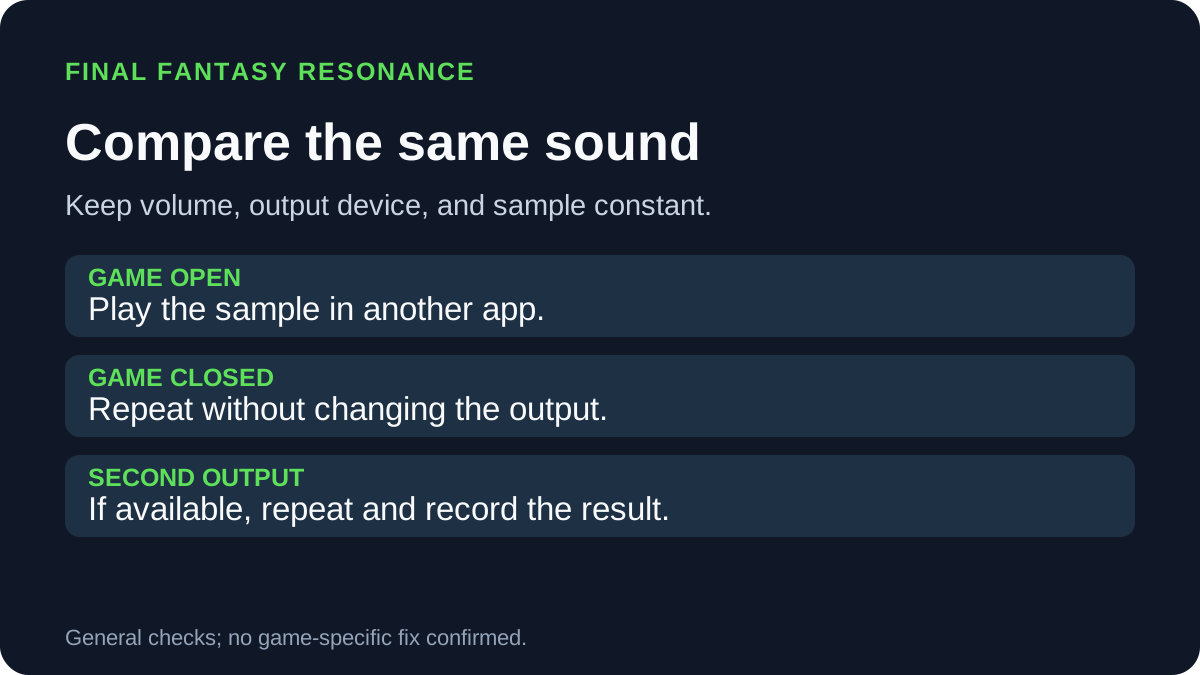
Keep the output device, volume, and a short audio sample constant. Note the game version and the point where the sound appears; avoid loud volume when testing.
| Comparison | What to note | What it cannot establish alone |
|---|---|---|
| Play another app’s sample with the game open, then closed | Whether the same sample changes when the game is running. | A change does not by itself identify which component caused it. |
| Test the game and another app on the same output | Whether the symptom is limited to the game or also affects another source. | One app sounding clear is not a complete hardware or driver test. |
| If available, repeat on a second output device | Whether the condition follows the output device. | Different connection types and their settings can differ; this does not prove a defective device. |
Write down the observation before changing settings. This comparison is a diagnostic aid, not a claim that any combination identifies a confirmed defect.
Try Windows output settings one at a time
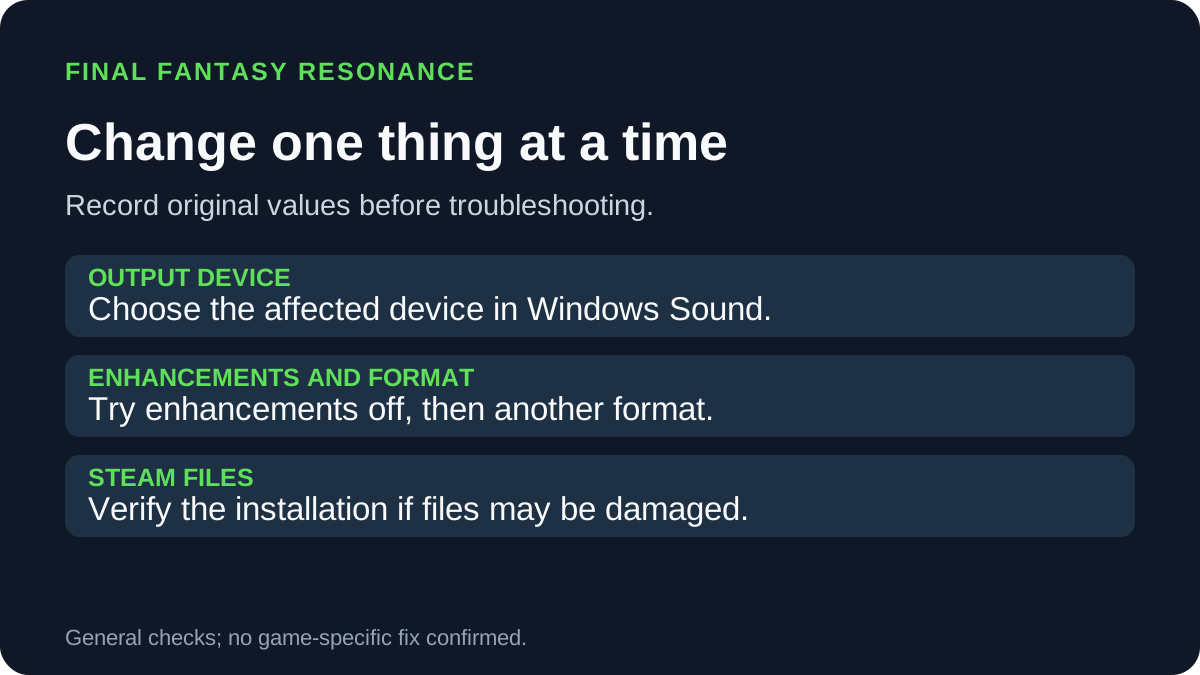
Microsoft’s general crackling-audio guidance applies to Windows 11. Choose the output device that actually produces the sound in Settings → System → Sound.
- Record the current Audio enhancements setting. Turn enhancements off and repeat the same sample and game scene.
- If the symptom remains, note the original Default format in the output’s advanced settings, choose a different available format, and repeat the comparison. No particular sample rate is confirmed as a game-specific fix.
- Restore the original setting if the change does not help. Microsoft also documents updating the audio driver and restarting Windows audio services as later general troubleshooting options.
The Steam Link guide covers streaming from a host PC; when using streaming, test local host audio separately before drawing conclusions about a remote device. The Linux and Proton guide covers a different operating-system setup.
Verify the Steam installation if files may be damaged
Valve documents file verification for missing game content and crashes. It is a reasonable installation check, but Valve does not identify it as a specific fix for this game’s audio.
- Restart the PC, open Steam, and select the game in your Library.
- Open Properties → Installed Files → Verify integrity of game files.
- Wait for verification to finish before retesting. Valve notes that one or more local configuration files may fail validation normally; this result alone is not proof of a broken installation.
- Avoid running multiple game verifications or other system-intensive tasks at the same time, as Valve recommends.
The PC offline guide addresses license checks and offline launch; file verification is a separate Steam maintenance action.
What to include in a support report
Record the game build, Windows version, output device and connection, audio driver version, the original enhancement and format settings, and whether the same sample changes when the game closes. Include the scene and whether the issue affects other apps. These observations help support reproduce the conditions; do not present them as a confirmed cause.
The language and audio guide explains voice-language availability, which is separate from distorted output.
Official sources
- Microsoft Support: Fix distorted or crackling audio in Windows — general enhancements, format, driver, and audio-service steps; checked October 29, 2026.
- Steam Support: Verify Integrity of Game Files — verification steps, local configuration-file note, and concurrency warning; checked October 29, 2026.
- Steam: FINAL FANTASY RESONANCE — Windows PC system requirement; checked October 29, 2026.
Gallery
Related Articles
guides
How to Change Battle Speed in Final Fantasy Resonance
Find the battle-speed control on PC and distinguish combat speed from text and movement settings.
guides
Final Fantasy Resonance Steam Save File Location on Windows
Find the Windows Steam demo and full-game save folders and understand what a local backup does.
guides
Final Fantasy Resonance Controller Not Working on Steam: What to Check
Compare controller detection, input and in-game response in Final Fantasy Resonance without assuming a universal fix.
Was this helpful?
Thanks for the feedback!